

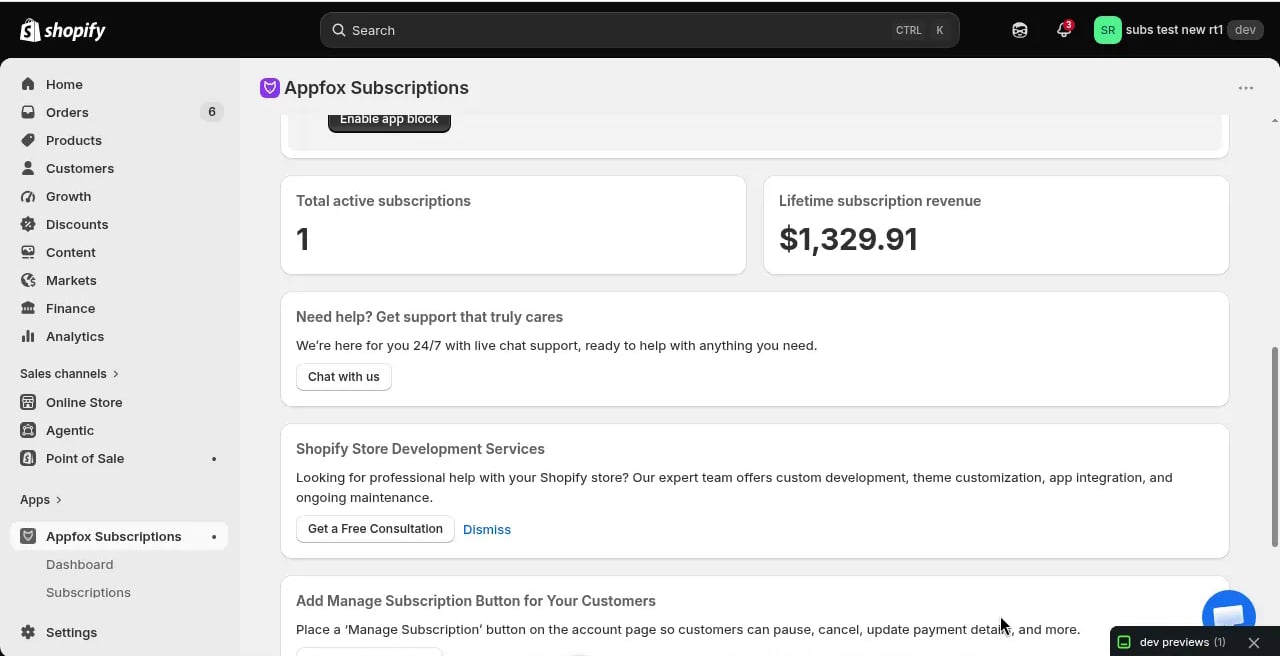
After a new install of Appfox Subscriptions, a one-time guided setup opens above the home page. It walks you through the three launch tasks below and resumes at your first incomplete step if you leave and return. You can choose Skip guided setup at any time. Finishing or skipping permanently closes the one-time walkthrough, but the reusable setup guide stays on your home page for reference.
Appfox Subscriptions home page showing subscription metrics and setup options

Setup steps

1

Create a subscription plan

Go to Plans and click Create Subscription Plan. Choose a name, select products, set your billing frequency, and configure the discount.Your first plan can be simple. You can create more plans or edit this one later.
2

Choose your widget style

Go to Storefront, then Widget, and pick a design for the subscription options that appear on product pages. You can customize colors, button text, and discount display.The widget preview updates in real time as you make changes. Click Save to complete this setup step; default settings alone do not mark it complete.
3

Enable the widget on your product page

From guided setup or the home-page setup guide, click Open theme editor. Add the Subscription Widget app block to your product page template and click Save in Shopify.Return to Appfox Subscriptions and click I added and saved the block. The app cannot detect the theme-editor save automatically, so this confirmation is required before setup is shown as complete.The widget will display on any product that has an active subscription plan.
After all three steps, choose Finish setup. Appfox Subscriptions is free for now, so there’s no plan to pick and every feature is already unlocked.

What happens next

Once you complete setup, customers can select subscription options on product pages. When they check out, Shopify creates a subscription contract. The app processes billing automatically based on the schedule you configured.
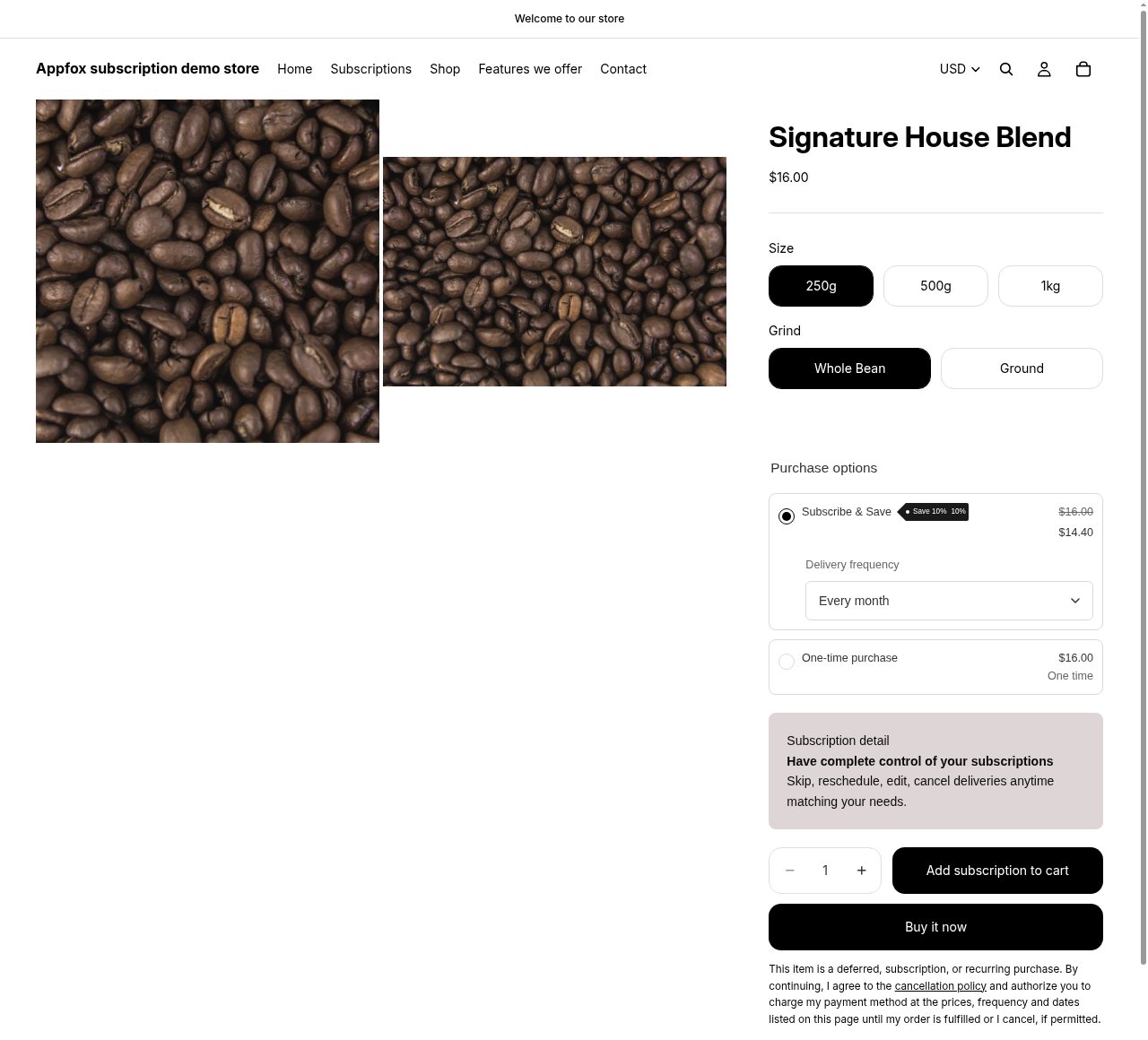
Product page with subscription widget showing Subscribe & Save option
The widget appears on product pages and displays your subscription options, discounts, and delivery frequencies. Customers can choose between subscription and one-time purchase. You’ll see new subscriptions appear in the Subscriptions section of the dashboard as orders come in.

Suggested next steps

Once you have a plan running, the app home page shows a Suggested next step card: one specific thing that would likely help your store, chosen from the features you haven’t set up yet — a prepaid plan, build-a-box, add-ons, product swap automations, branded emails, and so on. Suggestions are based on what you sell and how your subscriptions are performing, so they change as your store grows. If a suggestion isn’t for you, choose Not interested and the next one takes its place. If a suggested feature isn’t included in your plan, the card says which plan includes it and links to Shopify’s hosted plan-selection page. See Manage your app plan for details.
Looking for inspiration? Check out use cases to see different ways merchants use Appfox Subscriptions for their business models.
Need help? Contact us at support@getappfox.com.